 MedMemory
Early access
Ten pages. Same questions. Every single visit.
Tired of filling out paperwork? Can't remember your last colonoscopy? Your last tetanus shot? Which pills you're on?
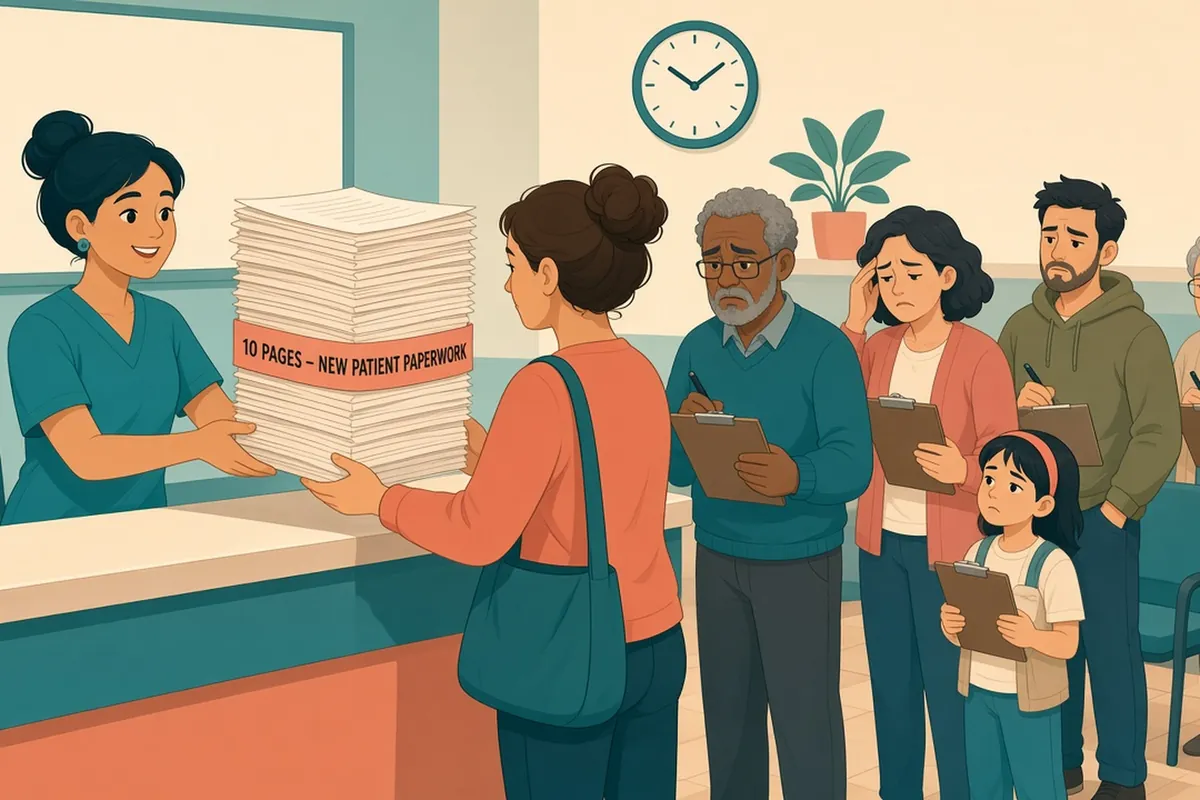
MedMemory remembers, so you don't have to.
Your medicines, allergies, surgeries, and shots live on your own phone. When the new-patient form comes, MedMemory answers what it can from records you've confirmed. You check every answer, then copy or print.
- Free to join the testing during this early stage
- No cloud account
- No subscription for the core app
- You confirm every entry
- Never gives medical advice
Why MedMemory
Every new office hands you a clipboard. What medicines, and how much? Any allergies? Which surgeries, and when? Is there metal in your body before this MRI? If you live with a disability or a chronic illness, that list is long, it changes, and drug names are hard to remember and spell. If you care for someone else, you answer for two people. Or three.
MedMemory is made for disabled and chronically ill people, and for the family members who keep track for a child, a parent, or a partner. It has big buttons, pick-from-a-list instead of typing wherever it can, and it is built so that one finger is enough.
What it does today
This is what works in the current early-access build, as of September 30, 2026. Every screenshot is the real app running with made-up demo data. Nothing here is a real person's record.
-
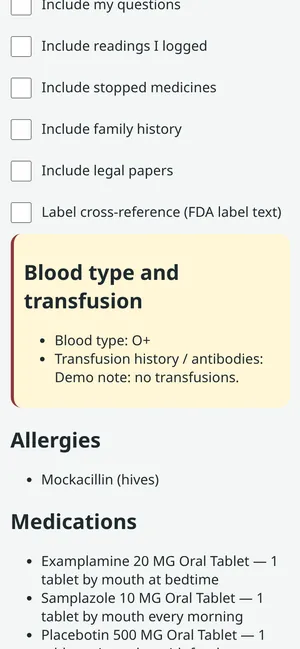
Get ready for the visit
One clear summary of what you've stored: medicines, allergies, implants, shots, insurance, and your blood type. Show it on your phone, print it on one page, share it, or have your phone read it aloud.
Add a short list of questions for the doctor as they come to you, and bring them along. MedMemory keeps your next appointment on the Home screen. It never suggests questions.
-
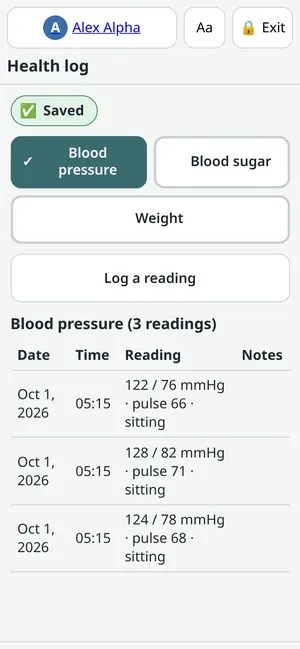
Blood pressure, sugar, and weight, as plain tables
Log a reading and see your readings in a plain table by date. Pick Blood pressure, Blood sugar, or Weight. The one you picked shows a checkmark, with a heading that says how many readings it shows. You can add the table to your visit summary, but that is off until you turn it on.
The numbers are shown exactly as you typed them. MedMemory does not say if a number is good or bad, and it gives no targets.
-
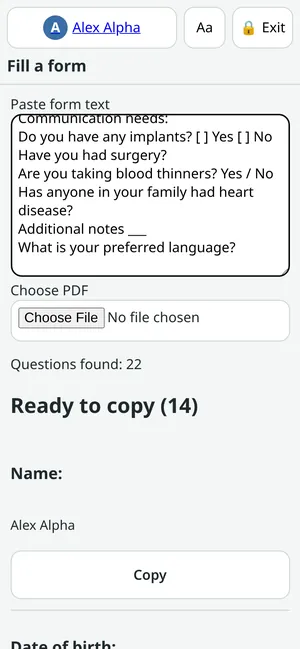
Skip the new-patient paperwork
Paste the form's questions, or choose the PDF. MedMemory finds the questions it can answer from records you've confirmed, like your name, medicines, allergies, surgeries, implants, pharmacy, and insurance. Copy the answers, or print them.
Yes-or-no health questions stay with you to answer. MedMemory never guesses. Nothing is saved unless you choose to keep the form. It reads PDFs that have real text in them, not scanned pictures of paper.
-
Keep your medicine list straight
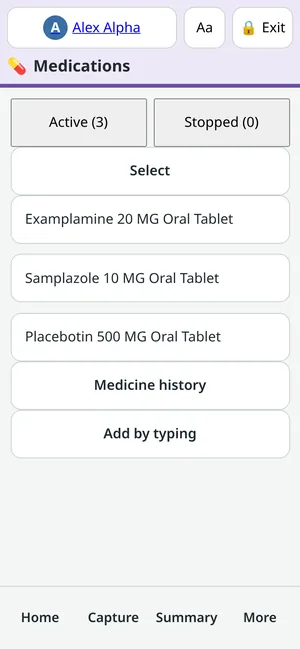
Type two letters and pick the medicine from the standard U.S. drug list, so you never have to spell it. Or take a photo of the bottle and keep it with the entry. On Android phones with Chrome you can scan the barcode on the bottle.
Stopped medicines move to their own tab. If the same medicine got saved twice, MedMemory shows both side by side and you pick which to keep. For each medicine you can keep the pharmacy, a refill date, and your own reminder, plus a timeline with reactions you describe in your own words. A photo of a pill bottle is saved with the entry, but MedMemory does not read the label from it on the phone. To have labels read for you, you can connect a reading service you choose. MedMemory asks first and shows where the photo will go.
-
Bring in records and lab results
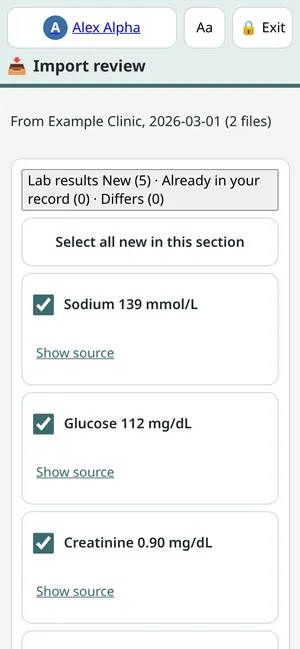
Download your health summary file (a CCD, or XML file) from your patient portal, or use a lab report PDF, and open it in MedMemory. You get a review screen, section by section. Each item is marked New, Already in your record, or Differs, so you don't end up with doubles.
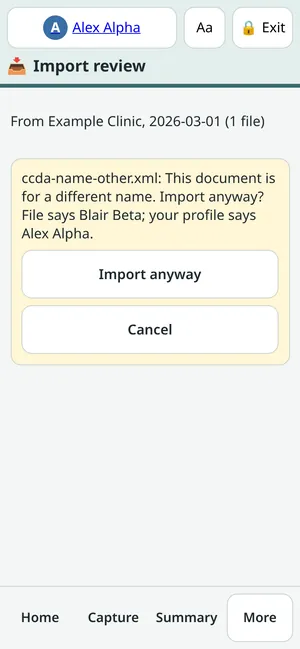
Nothing is saved until you tick it and confirm. Import the same file twice and nothing is added twice. If a file has a different person's name on it, MedMemory stops and asks first. A missing middle initial doesn't count as a different person. Lab results are copied as printed, with the lab's own range and flag, and no judgments.
-
Doctors and pharmacies come in with your records
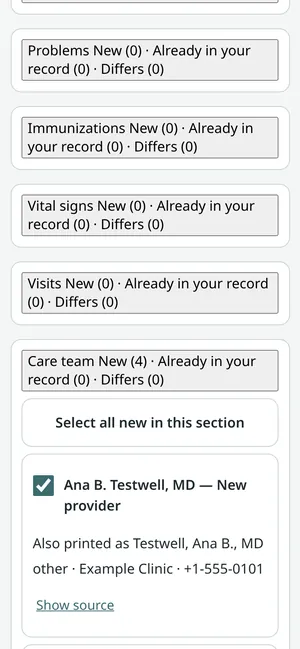
When a health summary file lists doctors and pharmacies, MedMemory offers them for your Care team on the review screen. Names printed Last, First, like Testwell, Ana B., MD, are shown as First Last, and the printed form is kept beside it.
MedMemory checks each one against the care team you already have. A new one is marked New provider. A likely match is marked Possible same provider and stays unticked, and you choose Use imported or keep what you have. Nothing is added until you confirm.
-
Screenshots and scanned pages, read on your phone
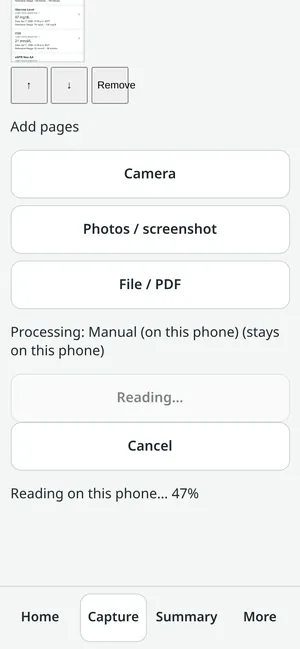
Pick a screenshot, a photo of a page, or a scanned PDF page, and MedMemory reads the words right on your phone. It shows Reading on this phone with a percent and a Cancel button. The picture is not sent anywhere. On the review screen you can open the original page next to the result before you save.
The first time, the phone downloads reading files, about 12 MB, so use Wi-Fi if you can. Reading a picture of text is not perfect. It can drop a line or run two lines together, so check every item. MedMemory marks rows it is unsure about as Please check. This is for printed pages such as lab reports. It does not read pill bottle labels.
-
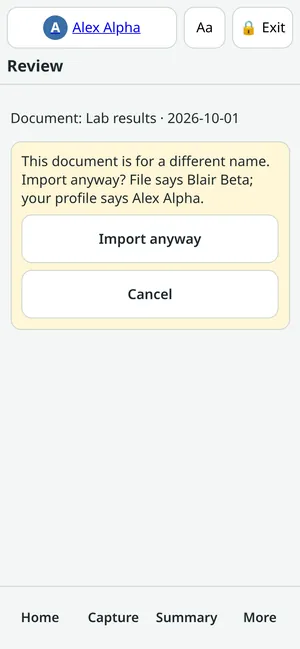
A warning when the paper has someone else's name
When MedMemory can read the text on a PDF or a photo, it compares the printed name with the person whose profile is open. A different name stops the import with a warning: Import anyway or Cancel. A page with no name it can match asks the same way.
A missing middle initial is fine. A different middle initial gets a Possible different person notice. This is a safety net, not a guarantee. If the text can't be read, there is nothing to compare, so check the name yourself.
-
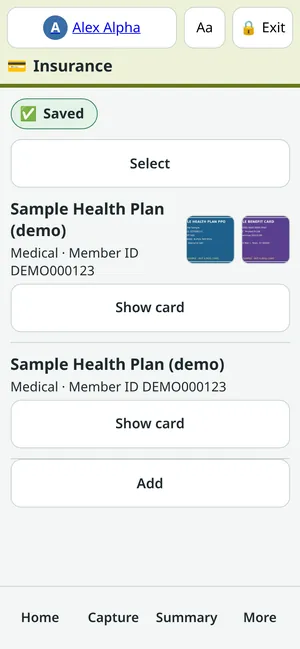
Insurance cards, front and back
Keep a photo of the front and back of each card, plus every number printed on it: member ID, group, Rx BIN, PCN and group, phone numbers, and claims addresses. Tap a photo to see it full screen.
You choose whether card numbers go in your visit summary or Fill a form. The benefit card number, security code, and barcode never do, and no insurance number goes into your emergency info.
-
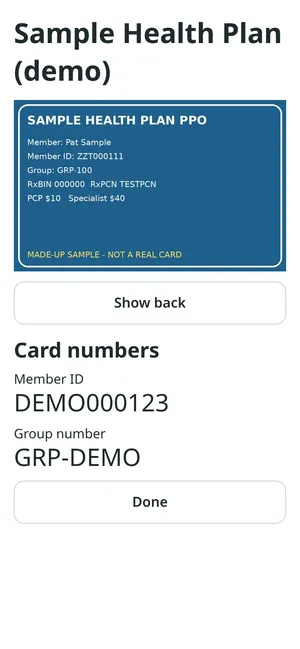
Show your card at the front desk
Show card opens a big full-screen view: the front and back photos, and the numbers printed on the card in large type. It is on Home when you have one medical plan, and on each plan in the Insurance list. The screen stays awake while it is open.
The benefit card number, security code, and barcode are never shown here.
-
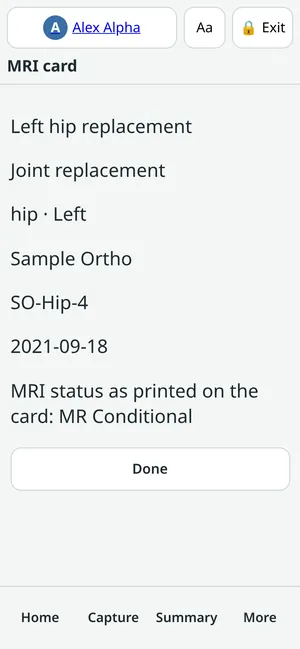
An MRI card for your implants
Attach a photo of the implant card to each implant. The MRI card is a full-screen view of your implants for the MRI staff, with what each card says: Safe, Conditional, Unsafe, or Unknown, as printed.
MedMemory shows only what the card says. It does not decide whether a scan is safe. That is for the MRI staff and your doctor.
-
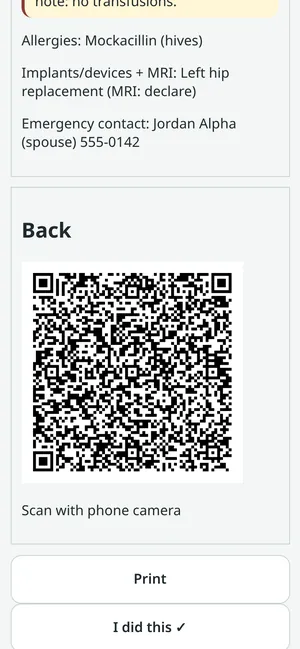
Emergency info that works without your PIN
Choose what a first responder may see, such as your name, blood type, allergies, implants, and who to call. MedMemory turns it into a text-only QR code for your lock screen and a wallet card you can print. It also walks you through copying the same facts into your phone's own emergency info.
You can add a transfusion history or red cell antibody note next to your blood type, in your own words. Each implant shows MRI Safe, MRI Conditional, or MRI Unsafe exactly as printed on its card. Anyone who scans the code can read it. That's why you choose exactly what goes on it.
-
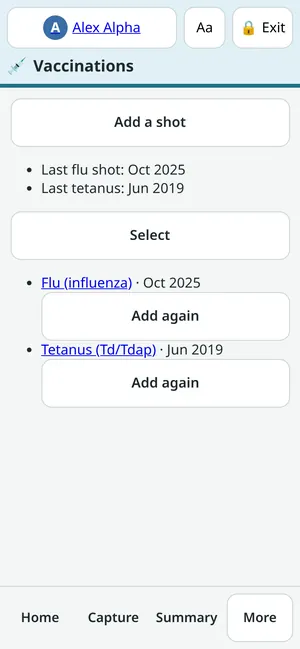
Shots, with the date of your last dose
Pick common shots, such as a flu shot or tetanus, from a short list, or type any other. See your last dose date at a glance. For a yearly shot, tap Add again. Keep a photo of your vaccine card with the shot.
Want a reminder? You choose the date. It shows on your Home screen, and you can add it to your phone's calendar. The list only saves typing. It doesn't say which shots you need, and there are no schedules or due dates.
-
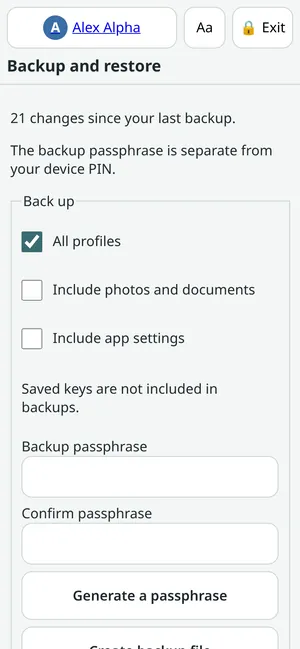
Back up and move to a new phone
Make an encrypted backup file for one person or the whole family, with photos and documents if you like. MedMemory can make backup words for you to write down, and the file opens only with those words. Restore it on a new phone, replacing everything or merging.
Something you deleted stays deleted when you restore, unless you ask for it back. Updates to the app never wipe your records. When a new version is ready, the app says so and offers to back up first. You can type the backup words the way your phone keyboard types them, with capitals and extra spaces. Backup file names carry your local date and time.
Early testers, set up by us: back up to the MedMemory server, and share a read-only view with family for up to 7 days. The server only ever holds locked data. See How your data stays yours.


Want to try it? Testers are invited a few at a time.
Join early accessAlso in the app today
-
Records
- Medicines, allergies, conditions, surgeries, implants, care team, pharmacies, emergency contacts, appointments, and documents
- Care team rows hold phone, fax, address, and website, and the phone numbers tap to call
- Lab results in one table per report, with each test's past values by date
- Every list has Select, and every screen tells you when a list is empty
- Home tiles show how many of each you have
- An FDA label cross-reference quotes the label's own sentences for a medicine, exactly as written (needs internet)
-
More to keep track of
- Family history, in your own words
- A private journal, kept to yourself unless you choose to include it
- A shelf for legal papers, such as a power of attorney
- Questions for your next visit
- Refills and pharmacy for each medicine, with a reminder you set
-
Everyone on one phone
- Keep separate records for yourself, a child, a parent, or a partner
- Each person has a name and a color you pick, so you always know whose records are open
- Note your role, such as parent, guardian, or healthcare power of attorney
- Early testers, set up by us: send a family member a read-only link that works for up to 7 days, and end it any time
-
Locked and yours to delete
- One PIN opens the app. It locks itself after a time you choose, and Lock and exit locks it right away
- You get 12 recovery words to write down at setup. You can also set a passphrase for the lock screen, and the recovery words still open it
- Delete asks in words, Cancel comes first, and Undo stays on the screen until you leave
- Deleted items wait in Recently deleted for 30 days, or you can delete them for good
-
Made for hard days
- Big buttons and large text you can make larger with Aa, plus a high contrast setting
- Dark mode that follows your phone
- Labels for screen readers, and text boxes that work with your keyboard's voice typing
- Add it to your home screen like an app. Updates keep your records on the phone
How to import your records
The fastest way to fill MedMemory is to bring in files you already have. Start with the health summary file from your patient portal. No typing.
Screenshots are the real app with made-up demo data. Menu names in patient portals differ, so yours may be worded a little differently.
-
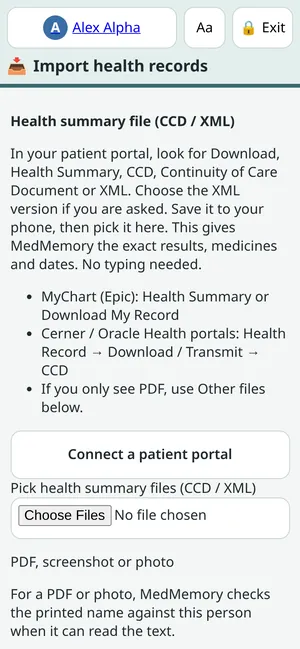
1. Health summary file from your patient portal (best)
This is a file called a CCD, a C-CDA, or a Continuity of Care Document. Choose the XML version when the portal asks. It carries exact medicines, dates, and lab values.
- Log in to your patient portal (MyChart or another). Look for Health Summary, Download My Record, Visit records, or Documents. In Cerner or Oracle Health portals, try Health Record, then Download / Transmit, then CCD.
- Pick the XML format. It may be named CCD, C-CDA, or Continuity of Care Document.
- Some portals give one file per visit or per provider. Download each one you want.
- Save the files to your phone. If you get a zip folder, open it in your Files app and use the .xml file inside.
- In MedMemory, tap Import health records (on Home, or under More). Tap Pick health summary files (CCD / XML) and choose your file or files. You can pick several at once.
-
Then check it on the review screen
- The Import review screen lists what's in the file, section by section: Lab results, Medications, Allergies, Problems, Immunizations, Vital signs, Visits, Care team, and Procedures.
- Each item says New, Already in your record, or Differs. Medicines that look like ones you already have are flagged as a Possible duplicate and start unticked. Doctors and pharmacies in the file show up under Care team. A new one is marked New provider. A likely match is marked Possible same provider and starts unticked.
- Untick anything that looks wrong. Show source shows where an item came from in the file.
- Tap Save selected. Nothing is saved before this.
Example: you download one file from your primary care office and one from a hospital. Pick both. MedMemory shows the shared medicines once and flags the repeats, so you don't end up with two of everything.
-
2. PDFs: visit summaries and lab reports
Use this when a portal only gives you a PDF. It is slower and less exact than the health summary file.
- Save the PDF to your phone.
- For a lab report, open Lab results and tap Upload lab PDF. Or tap Capture (photo, screenshot, file) on Home, pick what it is (for example Lab results), then tap File / PDF and choose the file.
- Tap Read pages. If the PDF is password-protected, MedMemory asks for the password.
- On the Review screen, look at each item, tick the ones that are right, and tap Confirm selected. Nothing is saved until you tap Confirm.
What MedMemory can read. On your phone, it reads PDFs that have real, selectable text. From a lab report PDF it pulls out test names, values, units, ranges, and printed flags, exactly as printed. For a visit summary or other PDF, it keeps the file in Documents and shows you the printed text. It does not fill in medicines or other records from it. Scanned pages (pictures of paper) are read on your phone too. That can drop or run together lines, so MedMemory marks rows it is unsure about as Please check, and you can open Show original page next to the result. The first time, the phone downloads about 12 MB of reading files. If you have connected a reading service, and you agree when asked, pages can be sent to that service instead.
Wrong person check. When the text can be read, MedMemory compares the printed name with this person's profile and asks first if it doesn't match. A page with no name it can match asks too.
-
3. Photos, screenshots, and pill bottles
- Tap Capture (photo, screenshot, file) on Home, then pick Pill bottle (or another kind, such as Insurance card or Implant card).
- Tap Camera to take a photo, or Photos / screenshot to choose one. You can add up to 10 pages.
- Tap Read pages, check the Review screen, and tap Confirm selected. Leave Also keep as a document ticked (it starts ticked) to keep the photo in Documents.
What really works. MedMemory saves the photo on your phone, encrypted. A screenshot or a photo of a page of printed text, such as a lab report, is read on your phone, and you check the result. A photo of a pill bottle is saved, but MedMemory does not read the label from it. To add the medicine itself, use Add by typing and pick it from the drug list. To have labels read for you, connect a reading service you choose in Settings. MedMemory then asks before it sends anything, and shows where the photo would go. Reading a photo can make mistakes, which is why you check every item.
-
Before you import: three things to know
- You review everything first. Every import ends on a screen where you tick what to keep. Nothing is saved until you tap Save selected or Confirm selected.
- Your files stay on your phone. MedMemory reads them on the phone, including pictures of text, and does not upload them. The exceptions are the ones you choose: a reading service you connect (it asks first), and medicine-name lookups on public U.S. drug lists.
- Only import your own files. If a file names a different person than the profile you are in, MedMemory stops and asks (Import anyway or Cancel). A missing middle initial is fine. For a PDF or photo, MedMemory does the same check when it can read the printed name. It can't check what it can't read, so look at the name yourself. Use a separate person profile for each family member.
MedMemory keeps what your files say. It doesn't interpret them, and it isn't medical advice.


Ready to try importing? Testers are invited a few at a time.
Join early accessHow it works
Four steps. Big buttons. Pick from a list instead of typing wherever possible.
-
Put it on your phone
Open MedMemory in your phone's browser and add it to your home screen. No account to create. Set one PIN for the whole app, and write down your 12 recovery words.
-
Add your records
Take a photo of a pill bottle, or type a name and pick it from a list. Bring in the health summary file or a PDF from your patient portal. You check each entry. Nothing is saved until you tap Confirm.
-
Set up emergency info
Choose what a first responder may see. MedMemory turns it into a text-only QR code for your lock screen and a wallet card you can print.
-
Use it at the visit
Show, print, or have your phone read aloud a clear summary. Answer the new-patient form from your records. Next time, see what changed since your last visit.
How your data stays yours
Your records live on your phone, not in a company's cloud. Here is exactly what the MedMemory server does and doesn't hold.
On your phone
- Stored encrypted on your phone. Every record, photo, and document is locked behind your PIN. The key is never stored in the clear.
- No account. No subscription for the core app. There's nothing to sign up for.
- You choose what goes anywhere. Your emergency info holds only what you picked. Backup files are locked with backup words only you have.
- Never gives medical advice. It shows what you entered, exactly as you entered it.
- No ads, no analytics, no tracking, no crash reports, no cookies.
On the MedMemory server
- The app's program files. The same for everyone. During testing they sit behind a tester sign-in.
- What you type into the forms on this website. Your name, email, and note, used only to reply to you. To limit spam it also keeps your browser's name and a scrambled code made from your internet address. See Privacy.
- For early testers set up by us: locked backups and shares. If we have paired your phone, you can back up to the server and share a read-only view with family. The server holds only encrypted data. A backup is stored exactly as your phone locked it. A share is stored locked too, along with its scope, its expiry, the profile name shown on it, and a record of who asked to view it, including the viewer's browser name. The key to open a share stays in the link after the # sign, and that part is never sent to the server. A family link lasts up to 7 days. When it ends or you revoke it, the server deletes the locked copy. We do the pairing, one person at a time. It is not self-serve yet.
- Nothing else. No readable medical records, no readable photos, and no keys. A phone that isn't paired sends nothing to the server.
What can leave your phone
Only when you use these features:
- Looking up a medicine sends just its name or code to free public U.S. government drug lists (RxNav and RxClass, from the National Library of Medicine).
- The FDA label cross-reference asks openFDA for a medicine's label, using its drug code or ingredient.
- If you connect a label-reading service, the photo goes to that service, and only after you agree for that service. Reading a screenshot or a scanned page on your phone sends nothing anywhere.
- If we have paired your phone with the MedMemory server, a backup or a share goes there locked. See the list on the left.
- If you try the Epic test sign-in (a test setup with made-up patients, not a real hospital), the phone talks to Epic's own sign-in page.
- The emergency QR code, wallpaper, and wallet card are public by choice. Anyone who sees or scans them can read what you put there.
- When you share, print, or copy a summary, it goes wherever you send it. That part is up to you.
One honest trade-off: if you forget your PIN and lose your recovery words and your backup, nobody can unlock your records.
MedMemory never gives medical advice
MedMemory records and shares. That's all. It does not tell you what to do. It does not suggest doses or say which shots you need. It does not judge your lab results or explain what they mean. Lab values are shown exactly as the lab printed them.
For questions about your health or your medicines, talk with your doctor, nurse, or pharmacist. In an emergency, call 911 or your local emergency number.
Early access
Join early access
MedMemory is an early build, and it isn't in any app store yet. You open it in your phone's browser and add it to your home screen. I'm inviting a small group of testers, a few at a time.
Free to join the testing during this early stage. Nothing is charged for it, and you won't be asked for a card.
I'm looking for people living with a disability or a chronic illness, and for caregivers who keep records for someone else. Tell me what's confusing, what's missing, and what's hard to use. Expect rough edges, and expect things to change.
Android phones with Chrome come first. iPhone should work too, with iOS 17.4 or newer. While you test, please start with made-up practice data, and keep your own copy of anything important. I'll send you a private test link and sign-in. There's still no MedMemory account, and your records stay on your phone.
Thanks, we'll be in touch.
Ask to join
Tell me your phone model and who you'd keep records for. Please don't include any medical details.
What you send here is stored on MedMemory's own server and used only to reply to you about testing. See Privacy.
Coming next
Apart from the first item, which is only for testers we set up, these are not in the app you'd test today. No dates. Some are written up and queued, some are ideas.
Built, set up by us for early testers
-
Early testers Back up to the server, and share with family
Working today for phones we have paired by hand. Back up (locked) to the MedMemory server and restore from it, and send family a read-only link that lasts up to 7 days. A link preview in a chat app can't use up the link. You can't set this up yourself yet.
Next up
-
Planned Set up server backup and sharing yourself
Pairing your phone with the server is something we do for you now. A simple flow you can do alone is next.
-
Planned Connect to a real patient portal
A test connection to Epic's sandbox, with made-up patients, is built into the app. It is not a connection to any real hospital or clinic, and no health system has signed on yet. A pilot with a real health system comes later. You would still check and confirm each entry.
-
On hold Clinic share
A read-only page a clinic can open from a QR code, for a short time. It waits for a legal review and for the pairing flow above.
Later
-
Later SMART Health Links
An open standard for sharing health records with a QR code. MedMemory plans to look at supporting it. It has not been tested with any clinic's check-in system.
-
Later App store versions and more for families
Android and iPhone apps. For families: a separate PIN for each caregiver, and alerts when an office asks to see a record.
Questions
Can I download it?
Not yet. MedMemory is in early access. It is a web app that you open in your phone's browser and add to your home screen, and testers get a private link. Use Join early access to ask for one. App store versions are coming later.
Where is my information kept?
On your phone, encrypted, behind your PIN. There is no MedMemory account. The MedMemory server holds the app's program files and the forms on this website, and no readable health records. For early testers we set up, it can also hold a locked backup and locked family shares. The server can't open them, because the key stays with you. A backup file is locked with backup words that only you have.
Does it cost anything to test?
No. Joining the early testing is free at this stage. We'll tell testers well ahead of time if that ever changes; nothing is charged without your say-so.
Does it cost anything?
There is no subscription for the core app. If you choose to connect your own label-reading service, that service may charge you. That's between you and them.
Does it work without internet?
After you've opened it once and added it to your home screen, the app opens without a connection, and your records are on the phone. Looking up a medicine and the FDA label text need internet.
Will it fill in my clinic's form?
It answers the questions it can from records you've confirmed, and you copy or print the answers. It works from pasted text or a PDF that has real text in it. It leaves yes-or-no health questions for you. It does not fill in a paper or PDF form for you, and it doesn't submit anything to a clinic.
Can I keep records for my mom, my child, or my partner?
Yes. Add a profile for each person on your phone. You can note your role, such as parent, guardian, or healthcare power of attorney. Everyone shares the same PIN on that phone.
What if I forget my PIN?
When you set up MedMemory, you get 12 recovery words to write down. They can unlock the app. If you lose the PIN, the recovery words, and your backup, your records can't be recovered by anyone.
Will MedMemory tell me if my medicines are okay together?
No. MedMemory never gives medical advice. It keeps your list so you can show it to your doctor or pharmacist and ask them.
Will it tell me which shots I need?
No. The vaccine list only saves typing. MedMemory has no schedules and no due dates. If you want a reminder, you pick the date yourself.
Have a question that isn't here? Send me a message
Contact
Have a question, found a problem, or want to ask about privacy? Send me a message and I'll reply by email. Please don't include any medical details.
Thanks for your message. We'll reply by email.